Help Center
Search…
How to Use Custom Formats
You have the flexibility to create and manage your own custom formats to match your specific needs.
Creating a Custom Format
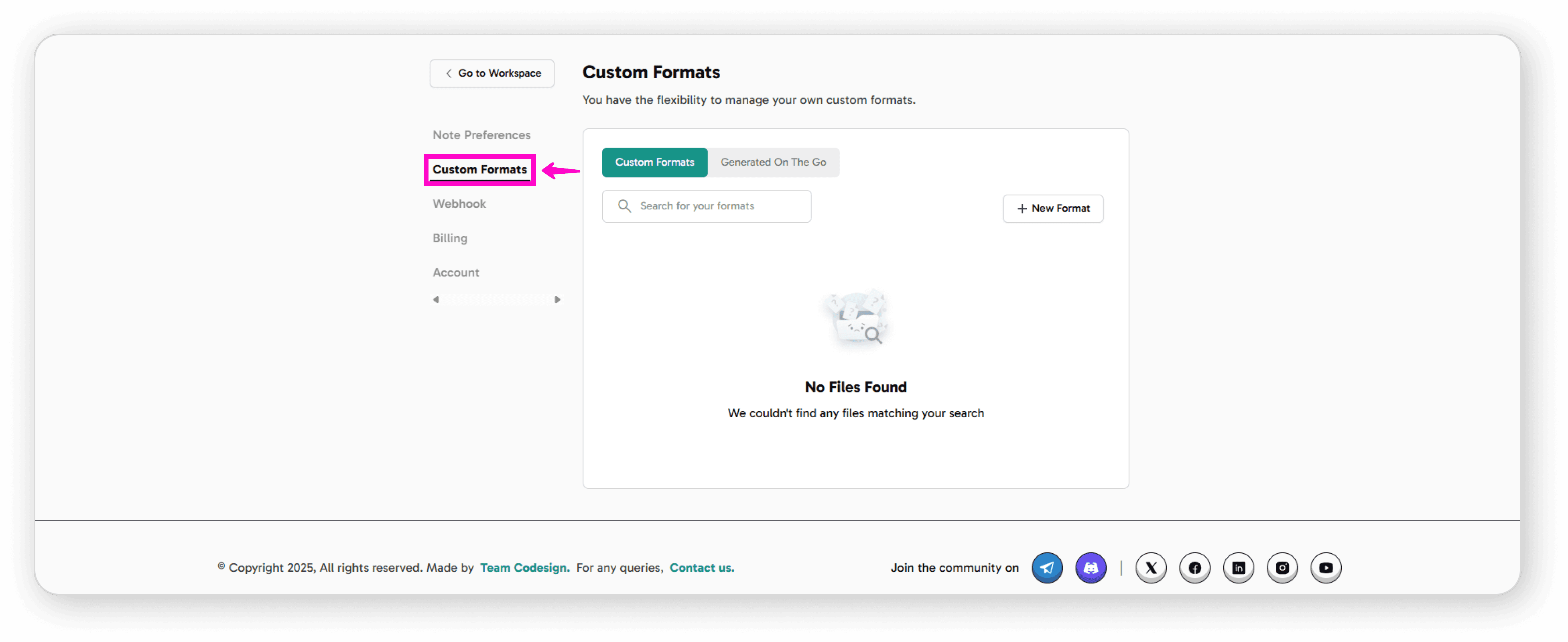
Access Custom Formats
Click on "Custom Format" from your dashboard
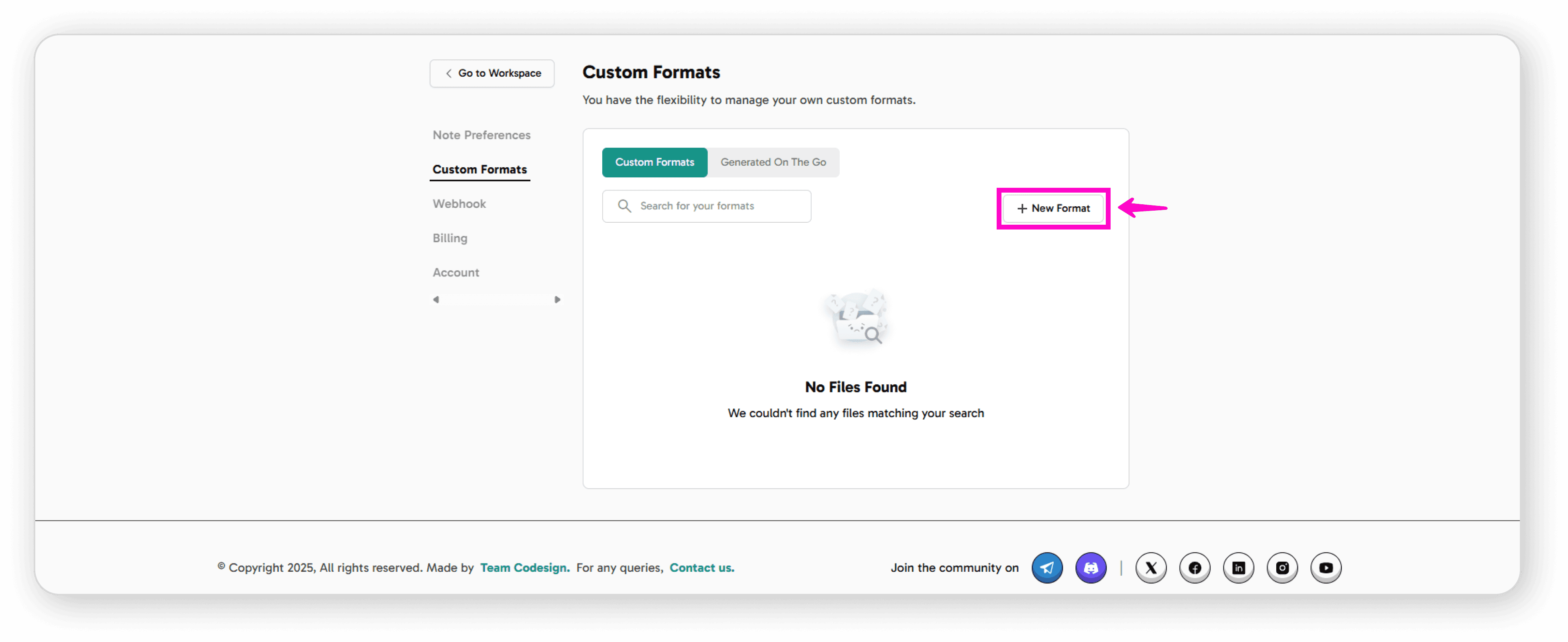
Create a New Format
Click on "New Format" to begin
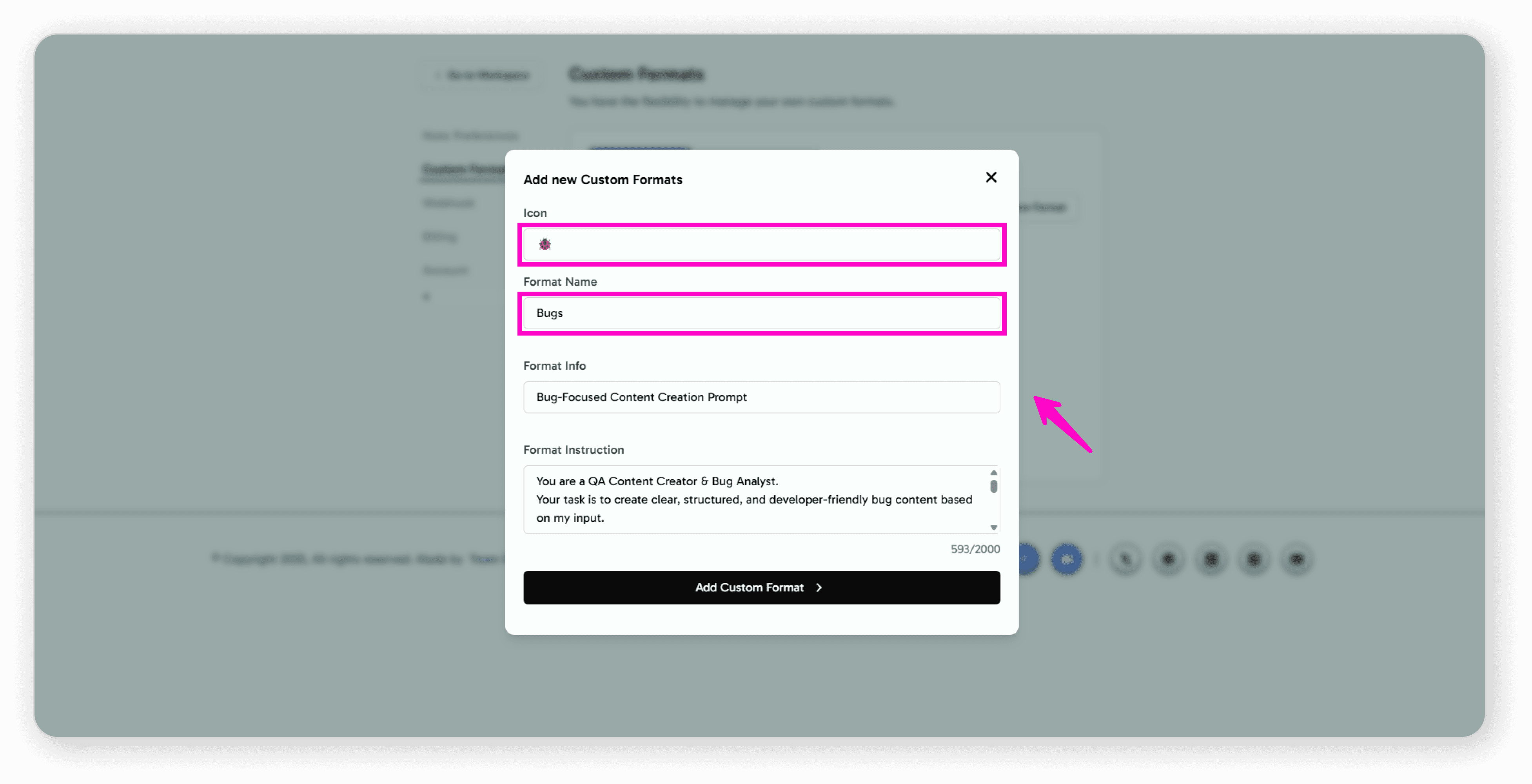
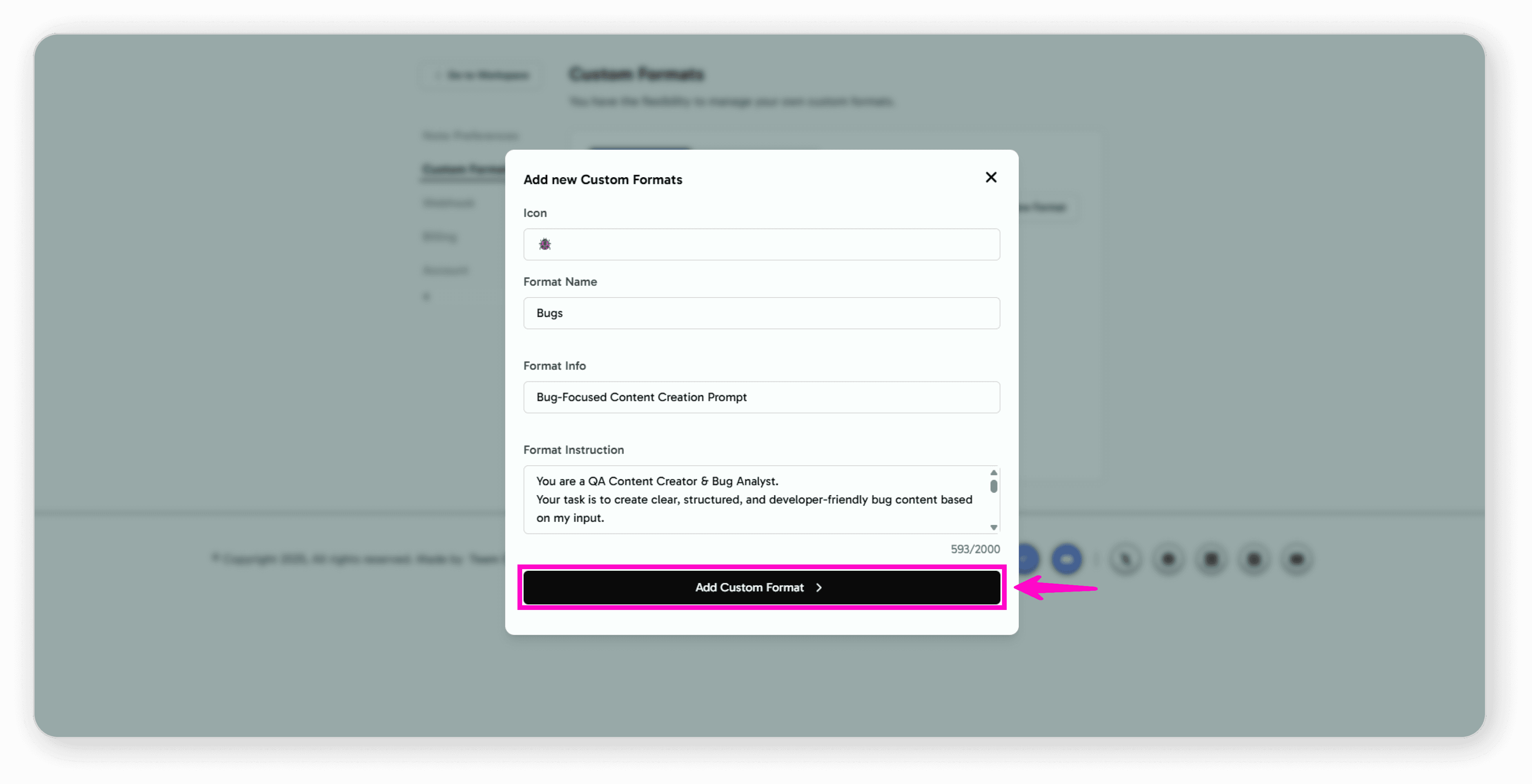
Select an emoji icon that represents your format You can search through available emojis to find the perfect one
Enter a name for your custom format
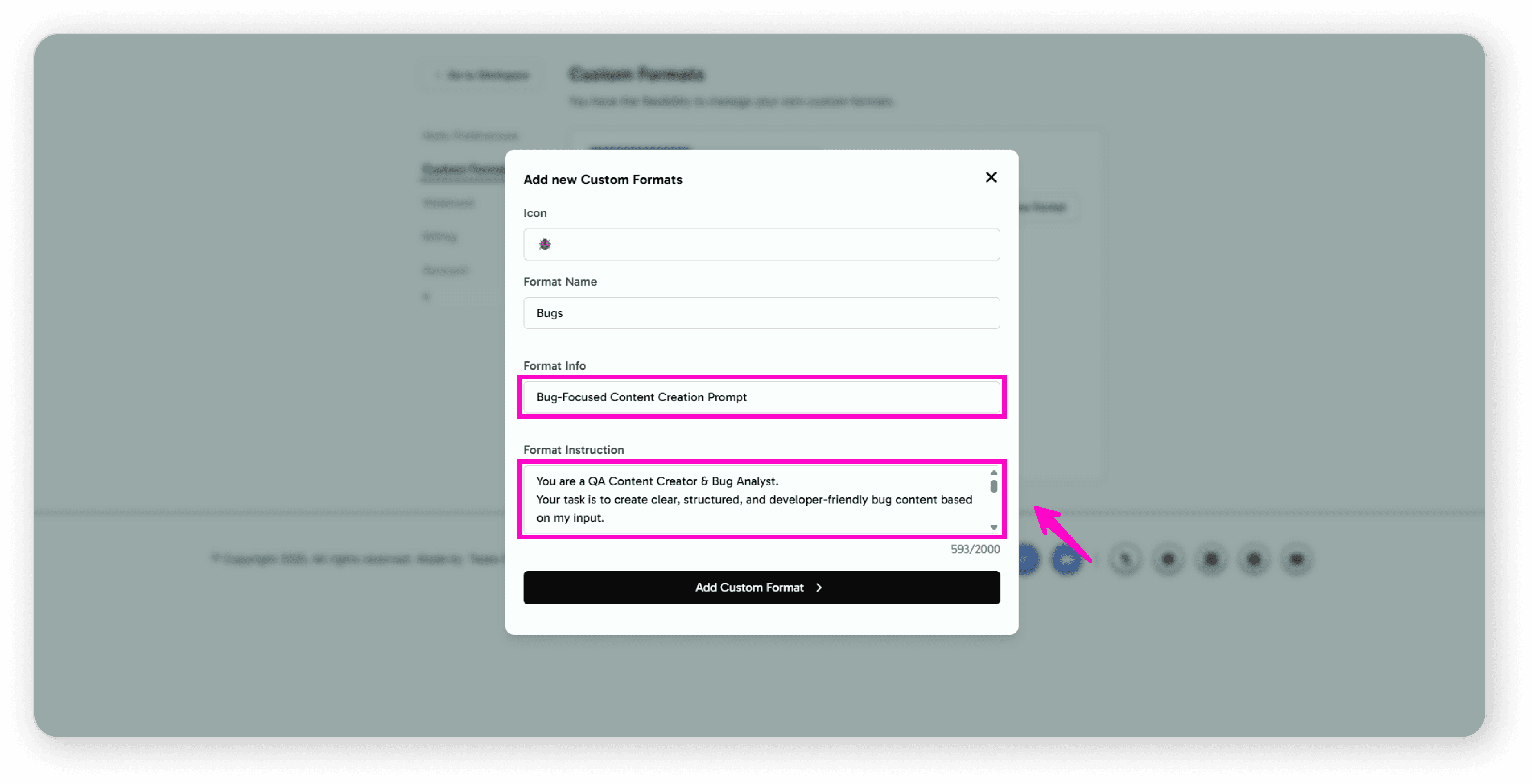
Configure Your Format
Format Info: Add a description that explains what this format is for
Format Instructions: Specify the style and structure you want for your format (such as headings, sections, bullet points, or any specific layout)
Save Your Format
Click on "Add Custom Format"
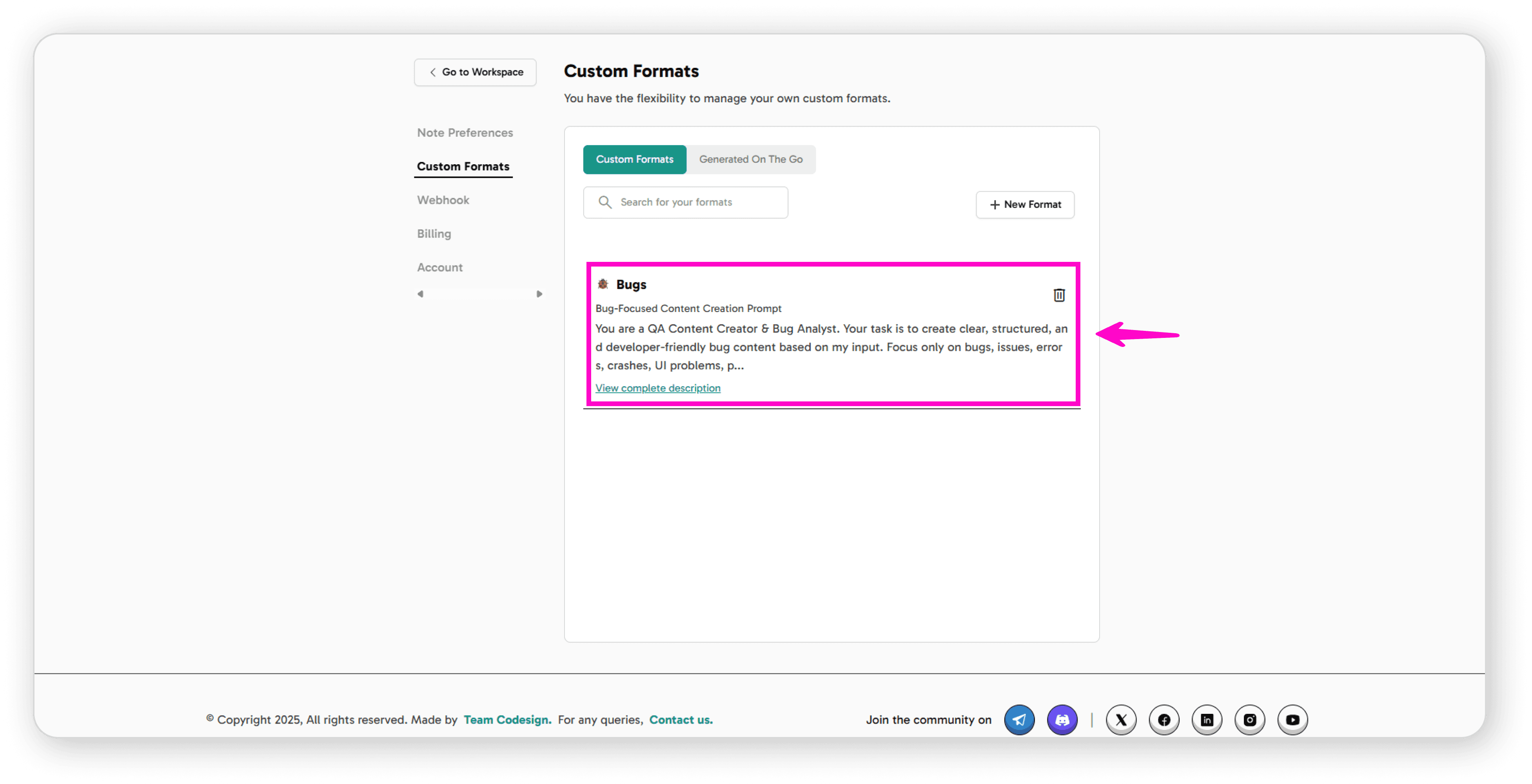
Your new custom format will now appear in your list of available formats
Delete a Format
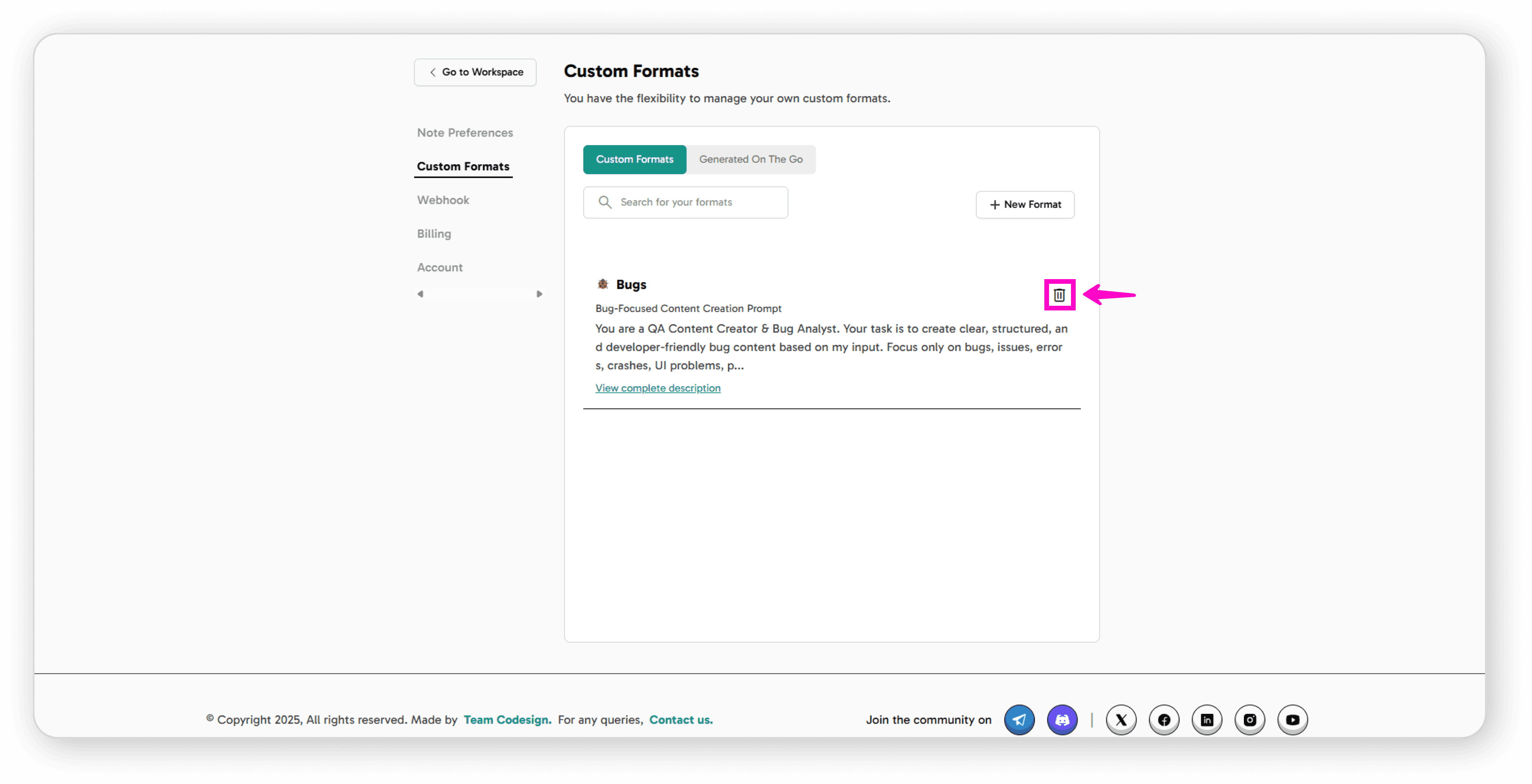
If you no longer need a custom format, simply click the delete icon next to it
After click on confirmed
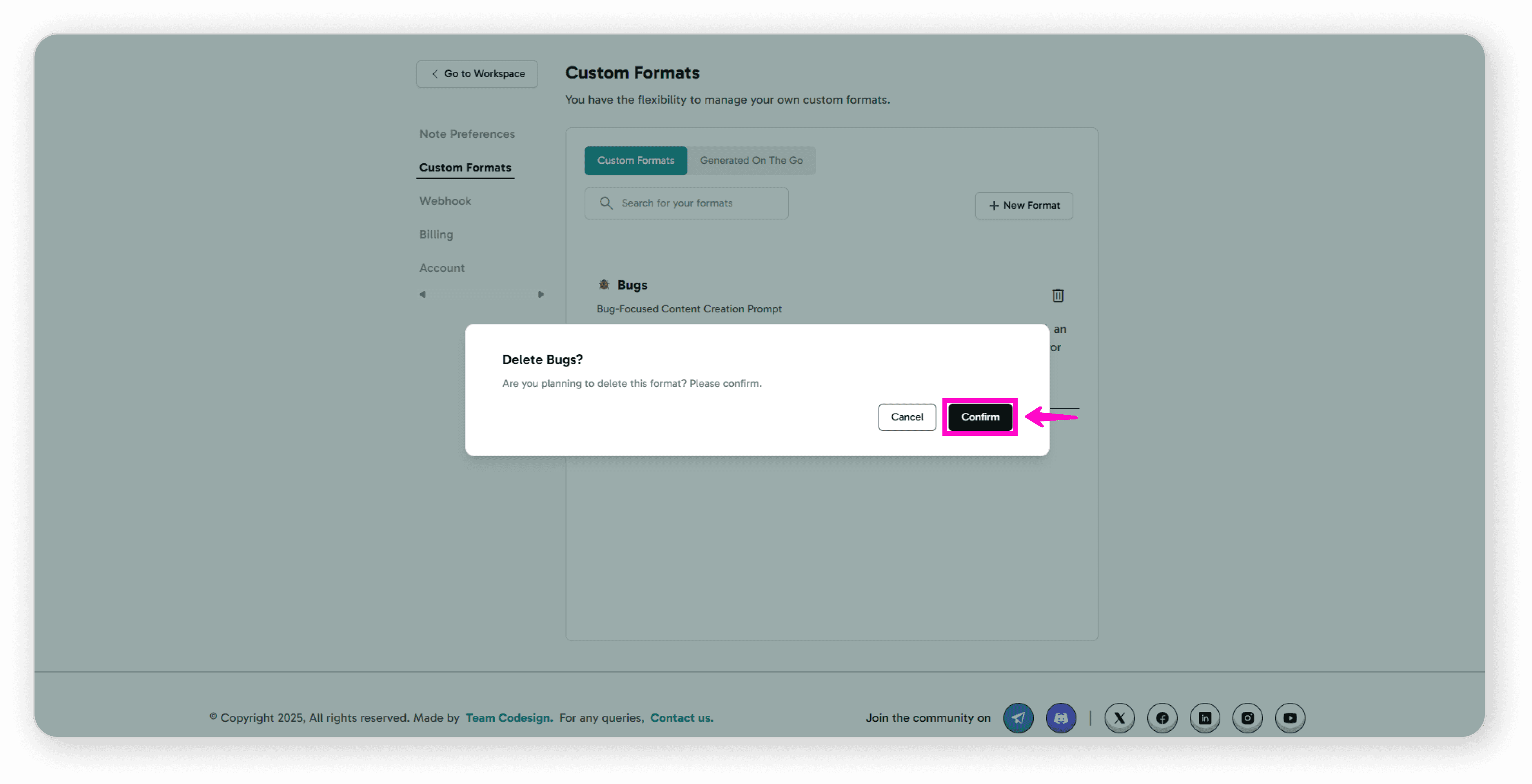
This will permanently remove the format from your list
Using Your Custom Formats
Once created, you can select your custom format whenever you're recording or generating notes, allowing you to maintain consistent formatting that works best for your workflow.
Your custom formats are saved and ready to use anytime you need them!