Custom Tags
Create and manage custom tags for your notes.
Customize Tags
Create a New Tag
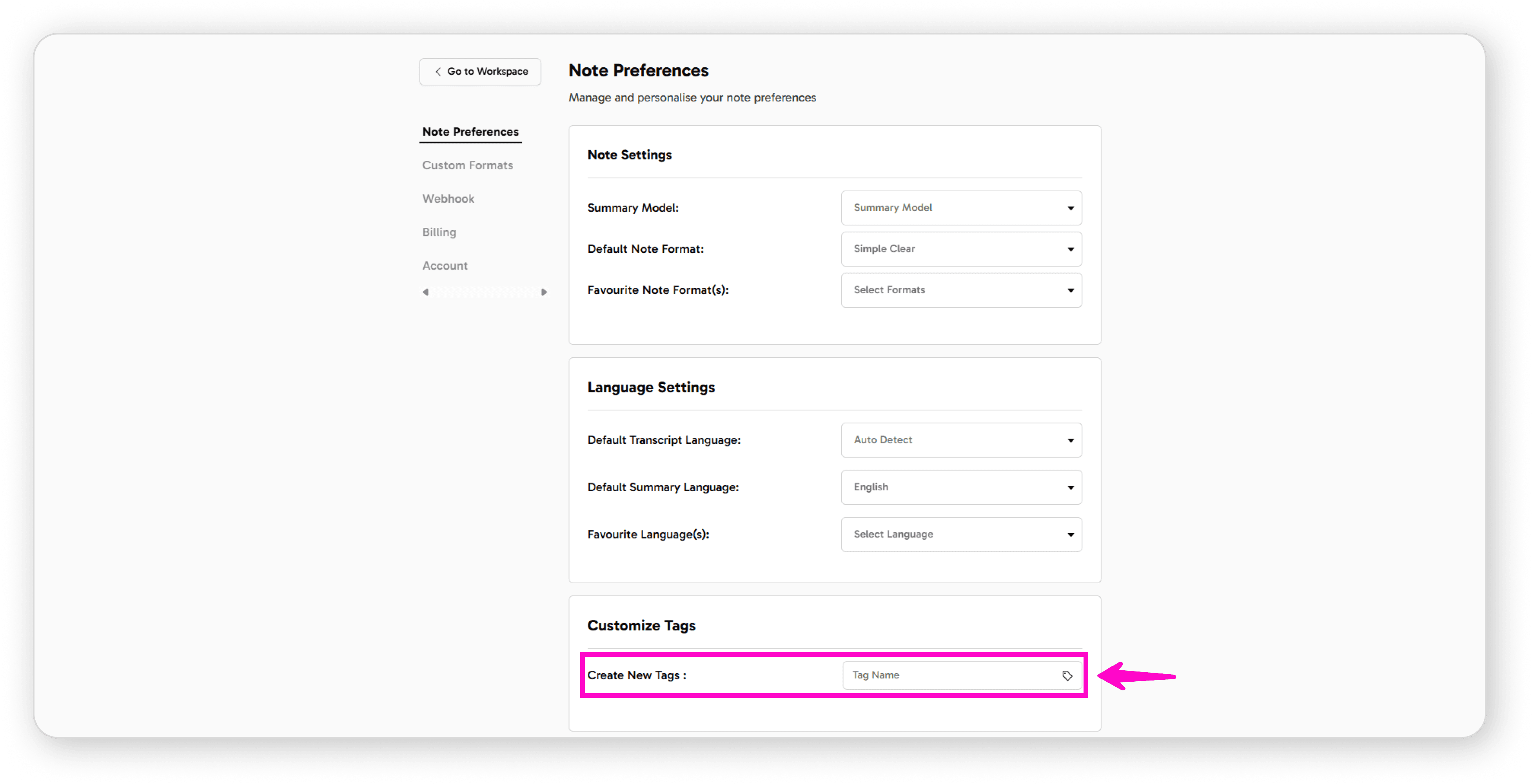
Click on Tag Name
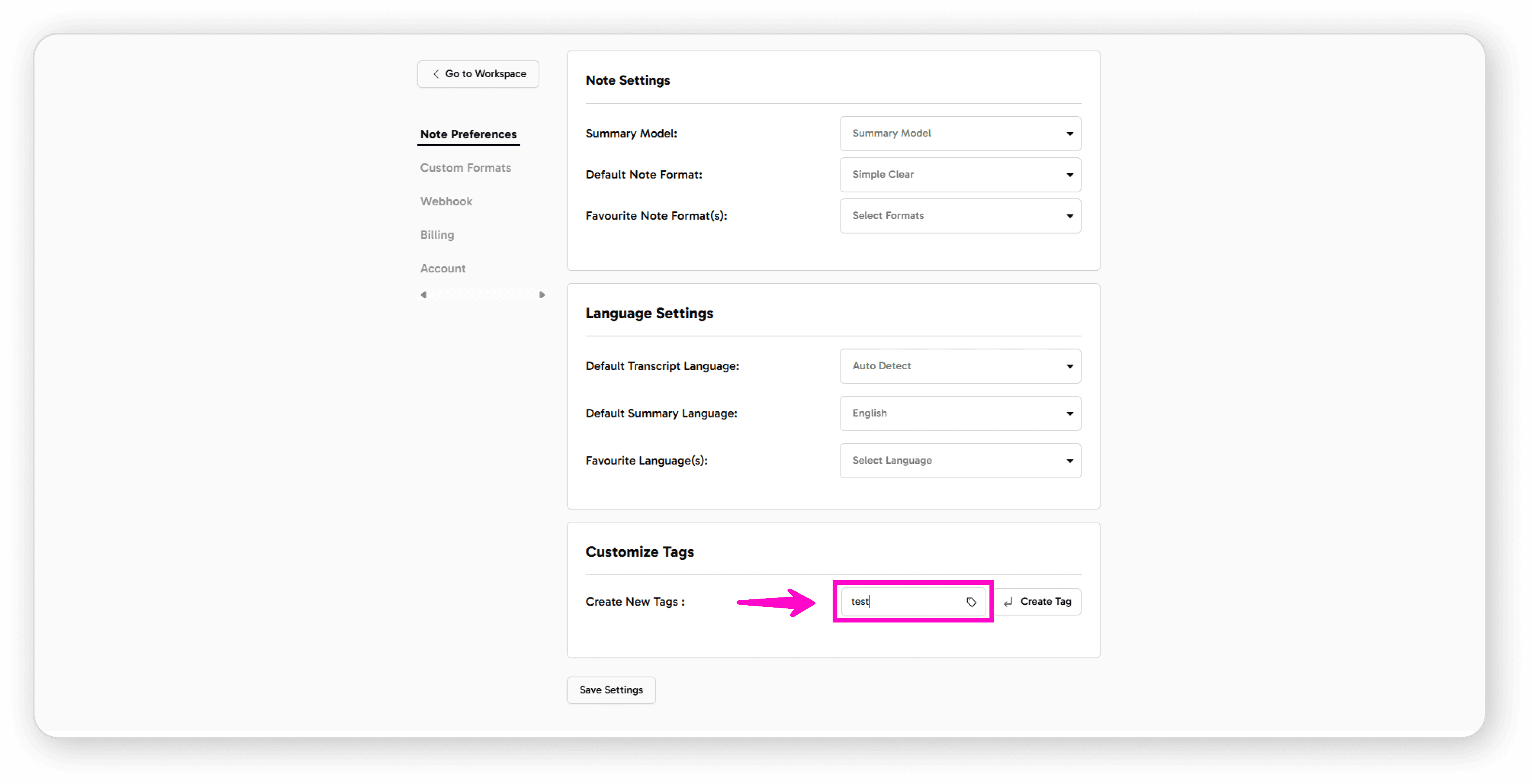
Enter your desired tag name
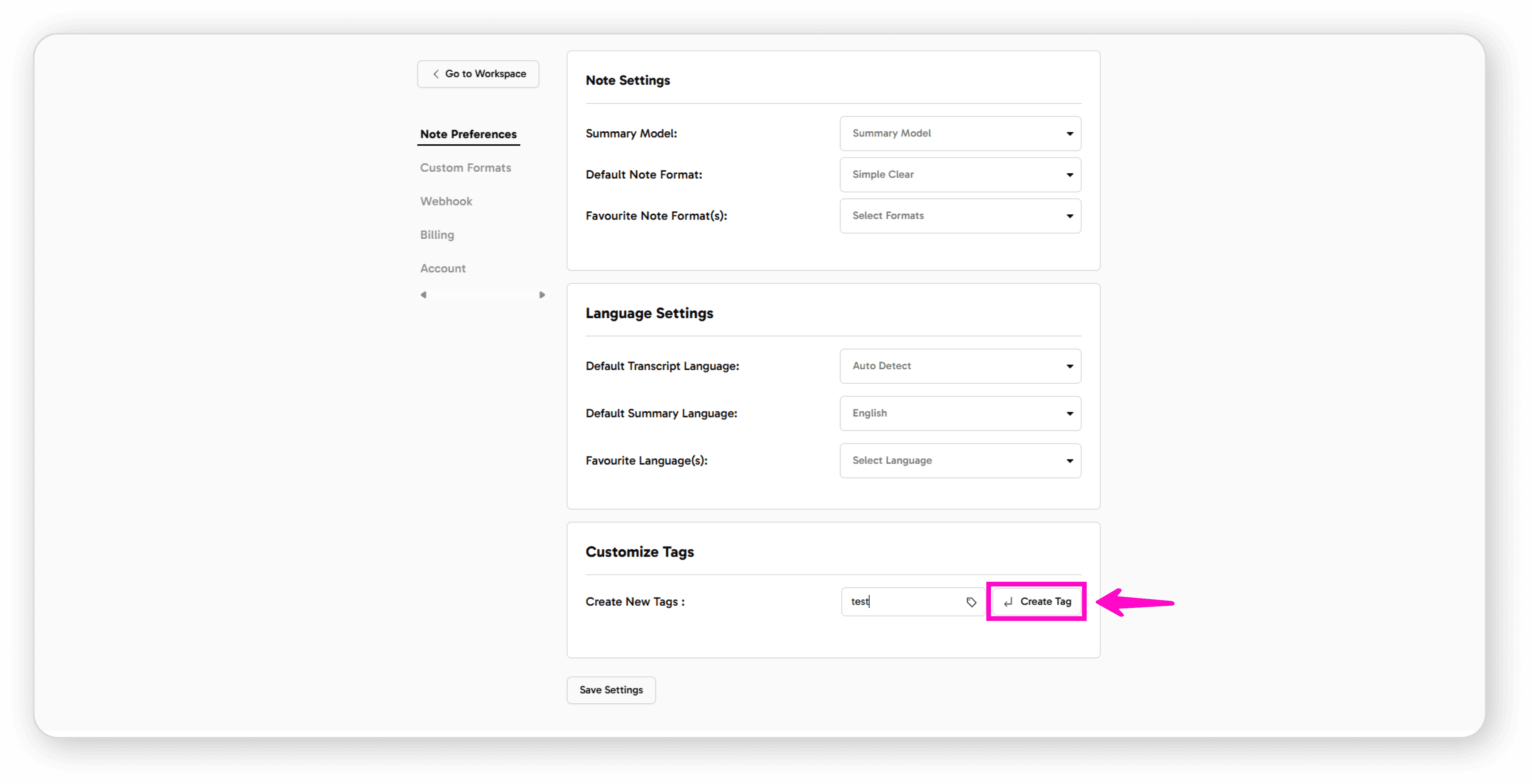
Click Create Tag
You'll see a confirmation that your tag was added successfully
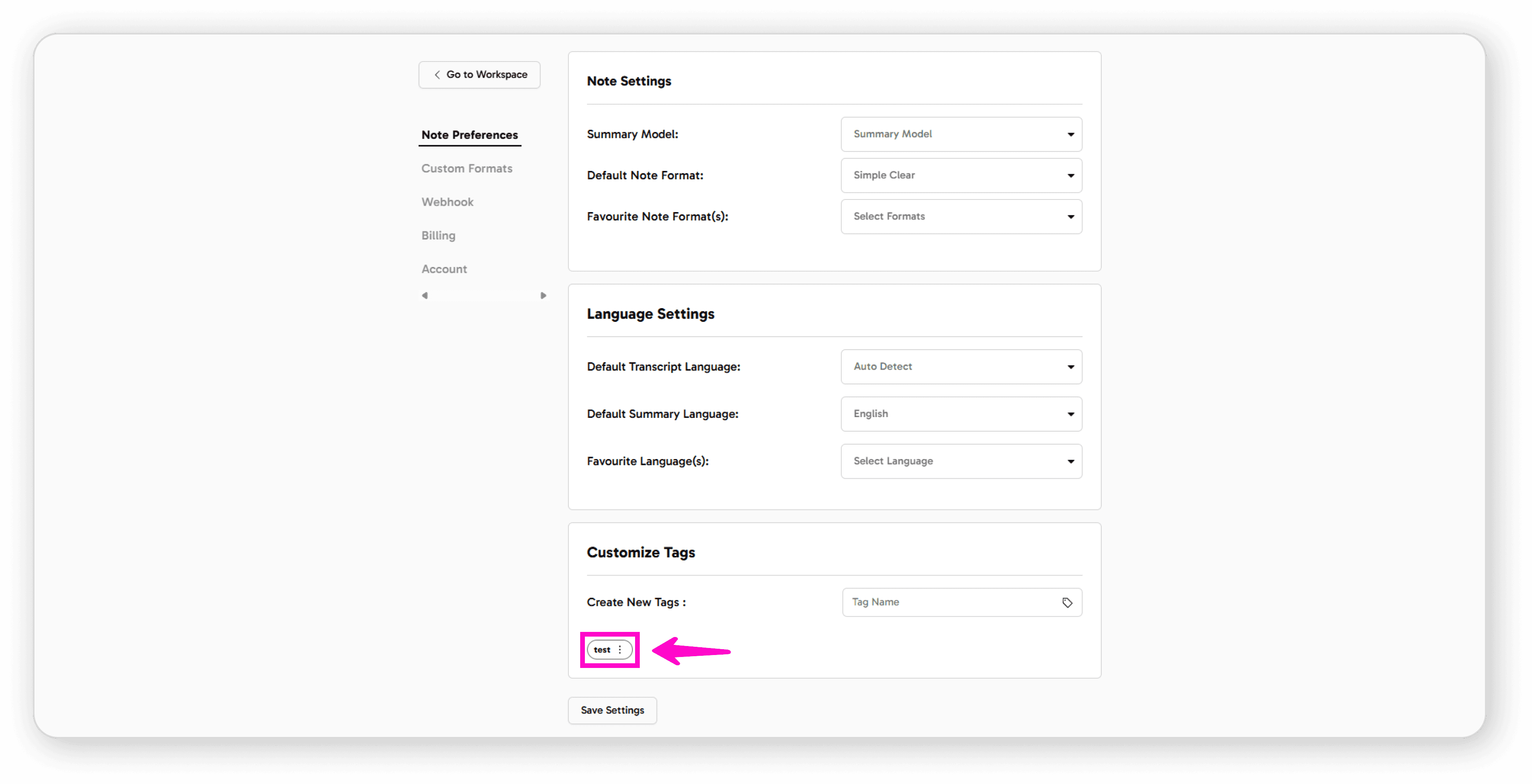
Customize Your Tags
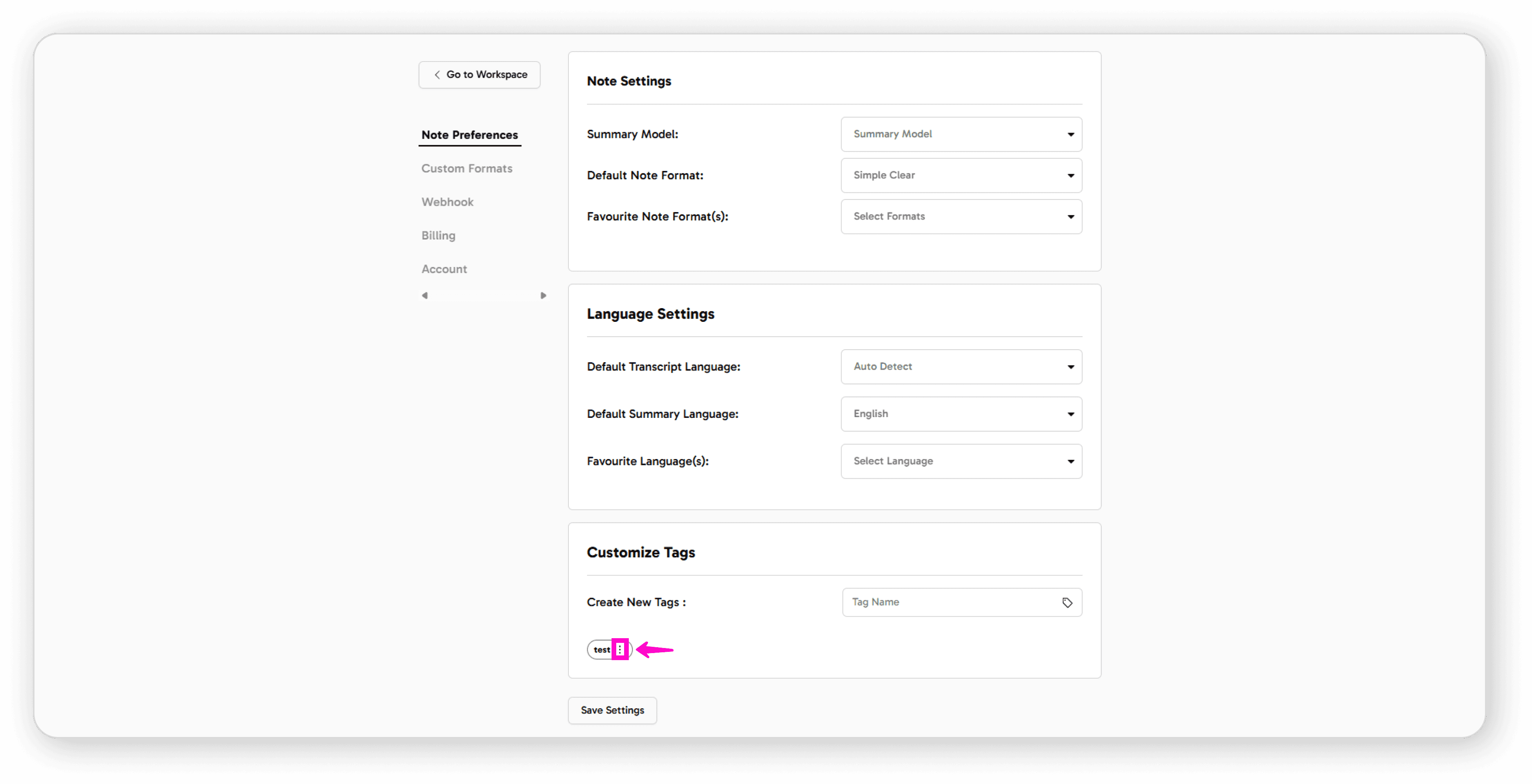
Click the 3-dot menu next to any tag for options:
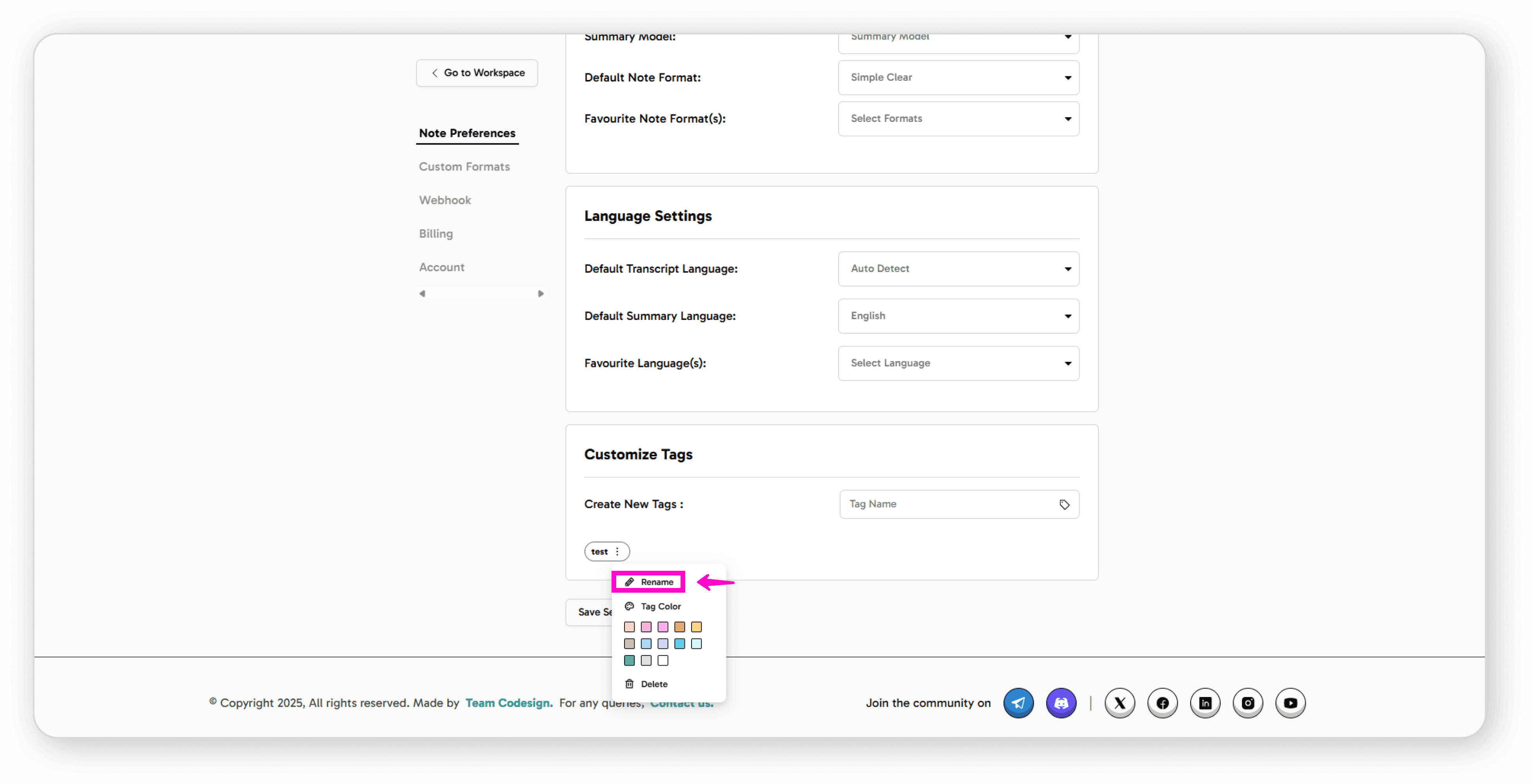
Rename: Click the pencil icon to change the tag name
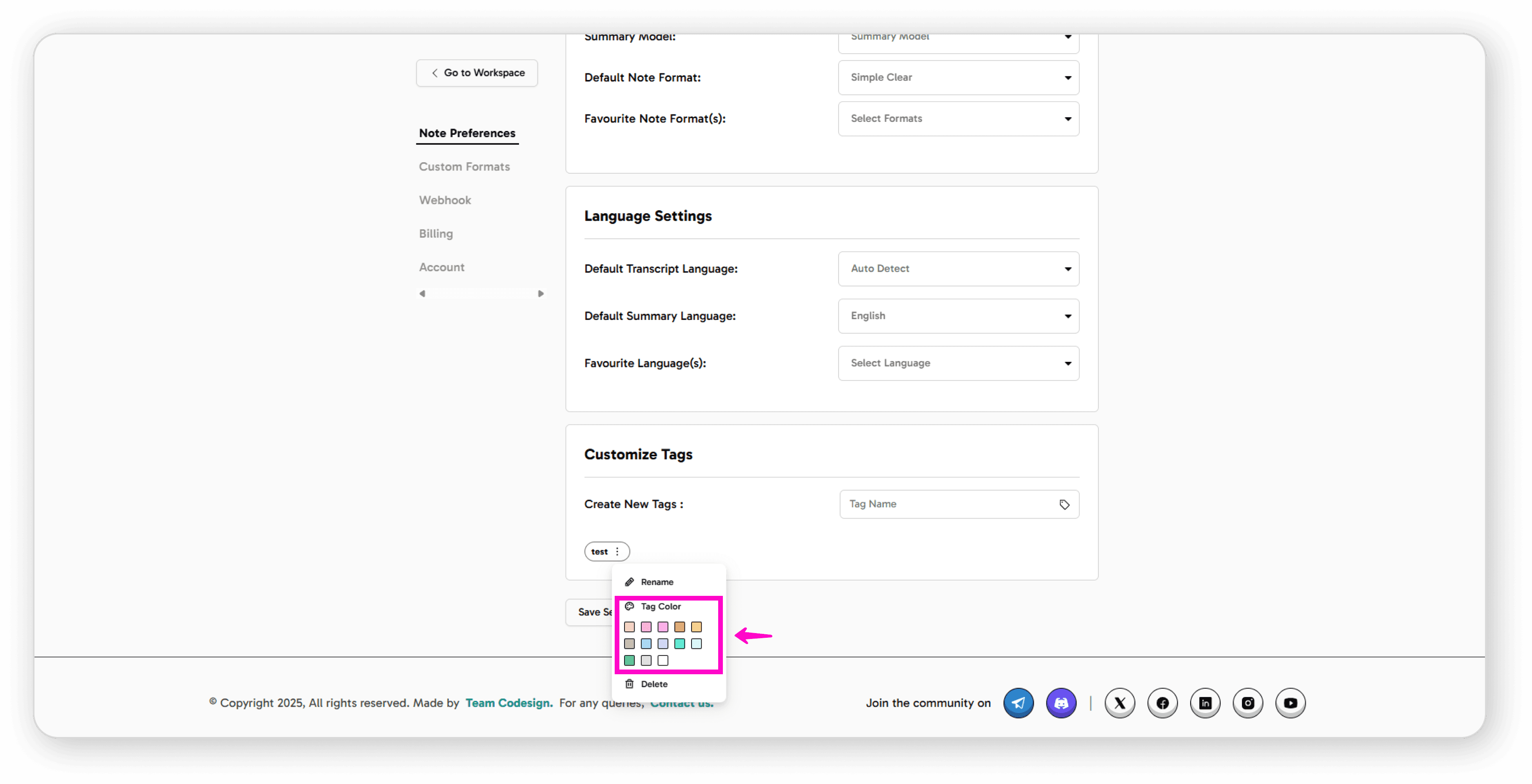
Change Color: Select any color to help visually organize your tags
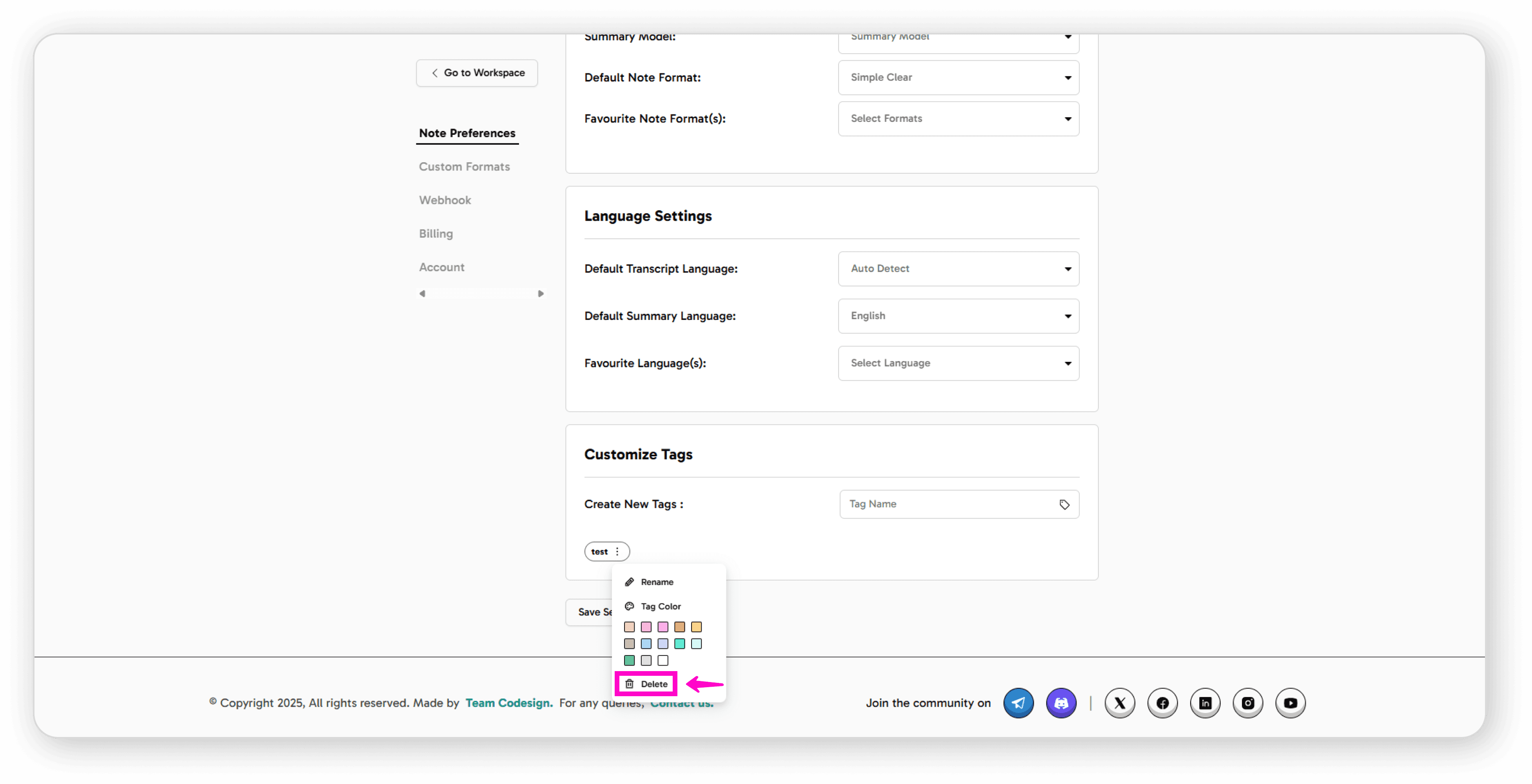
Delete: Click the delete icon, then confirm to remove the tag
You'll receive a confirmation message when your tag is successfully deleted.
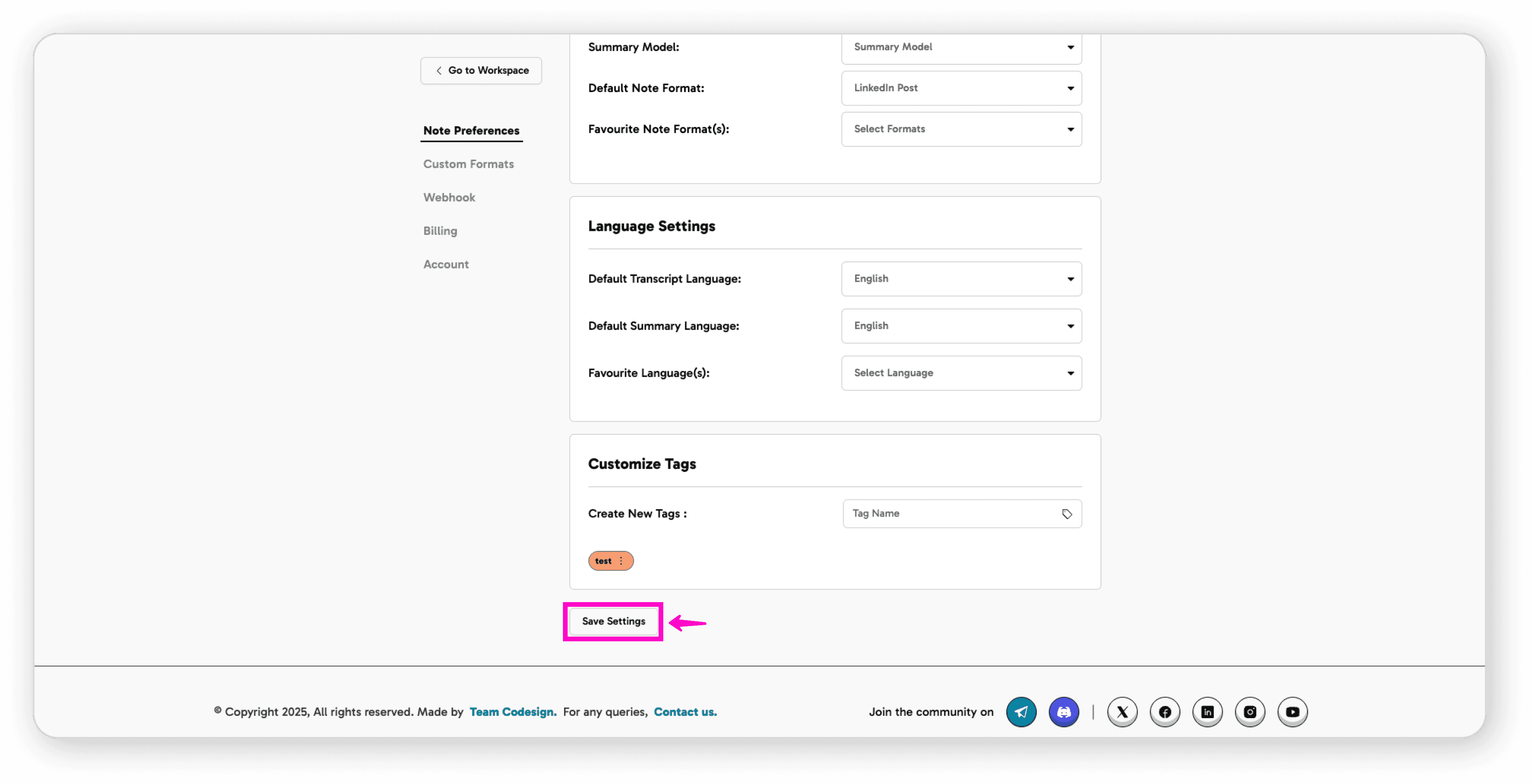
Save Your Changes
Once you've configured all your preferences, click the Save button to apply your settings.
These preferences will be automatically applied to all your future recordings, making your workflow faster and more efficient.