Trash & Restore Notes
Move notes to trash and restore them when needed.
Moving a Note to Trash
You have two options to delete:
Option 1: From Note List
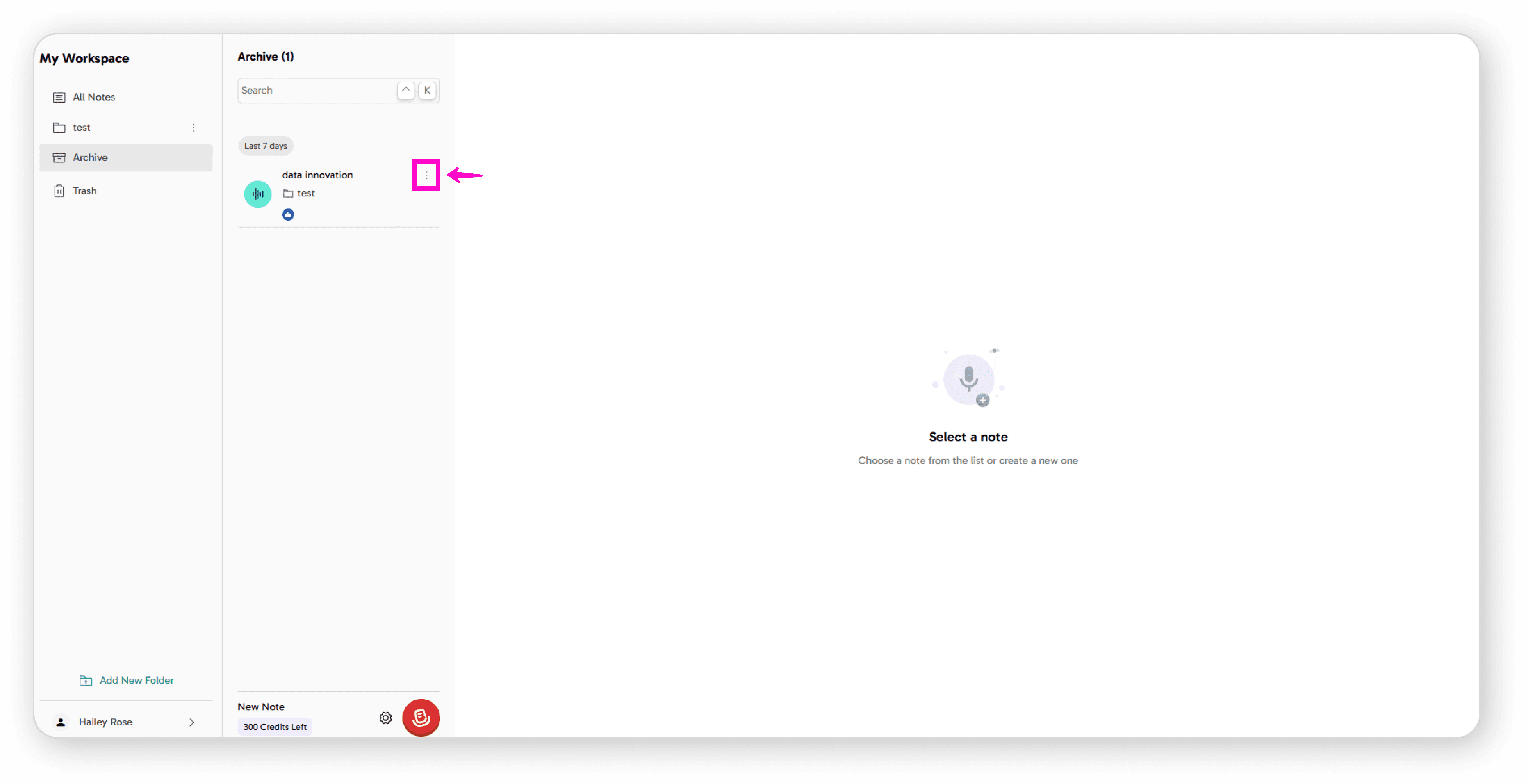
Click the 3-dot menu next to the note
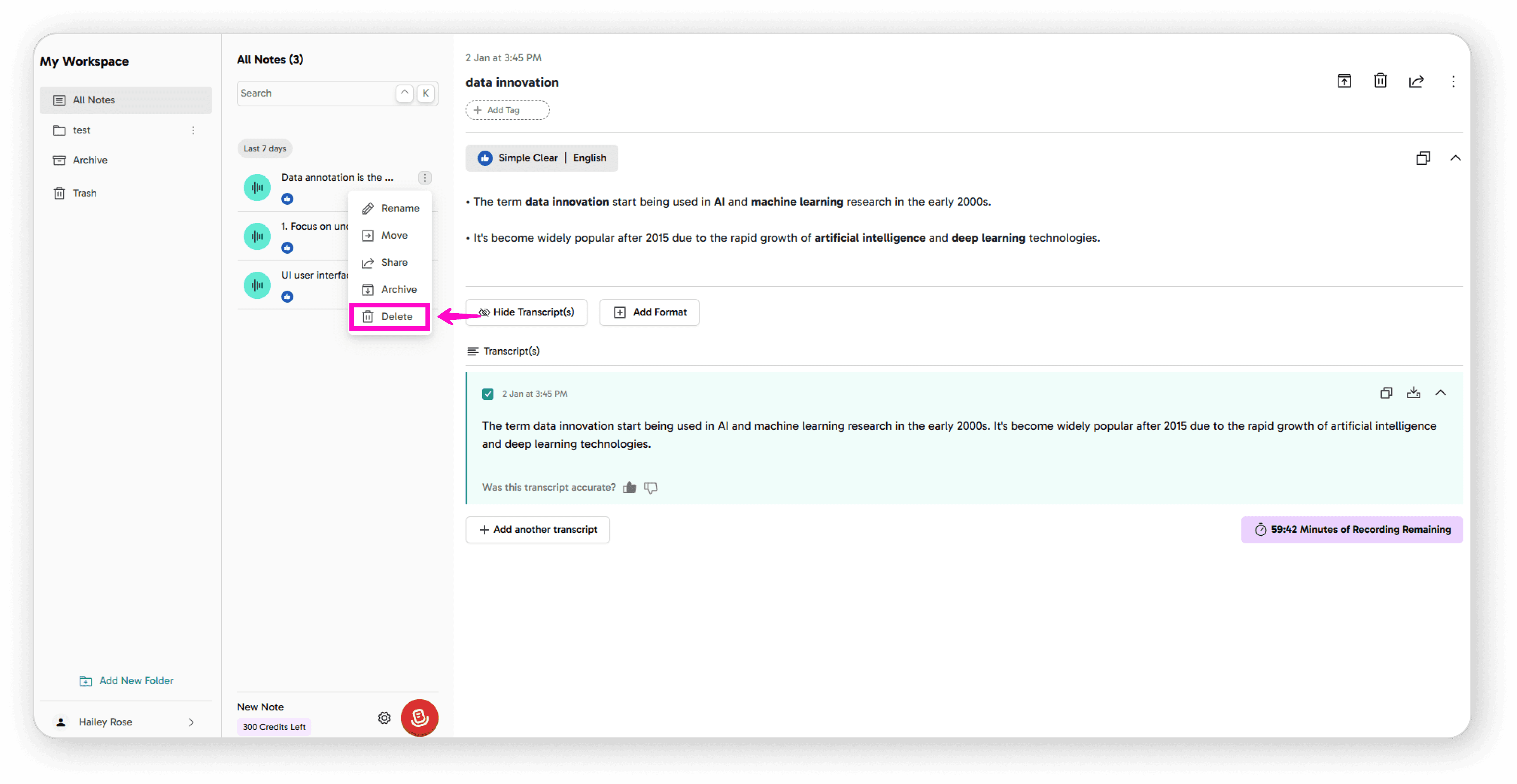
Click Delete
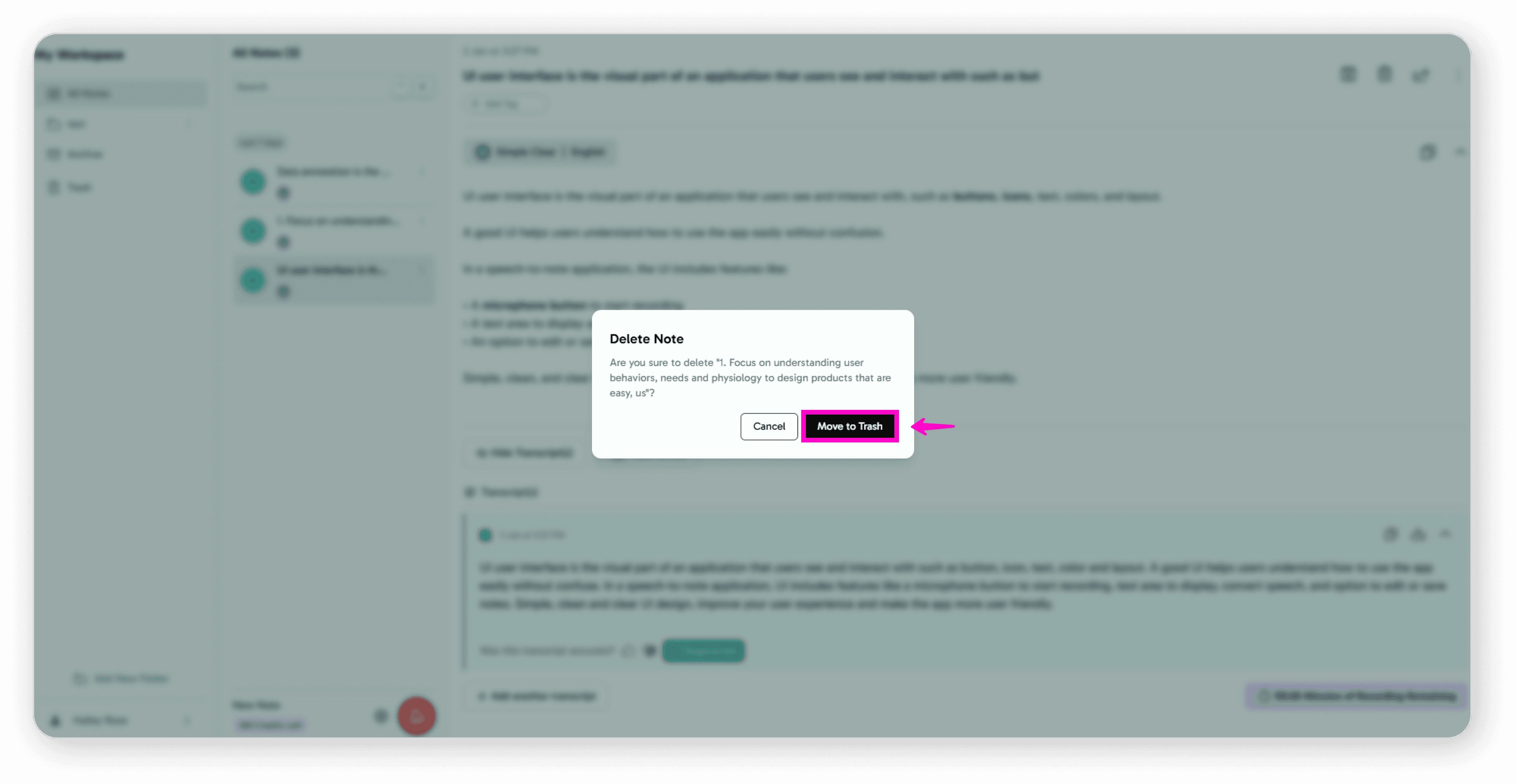
Confirm by clicking Move to Trash
Option 2: Within the Note
Open the note you want to delete
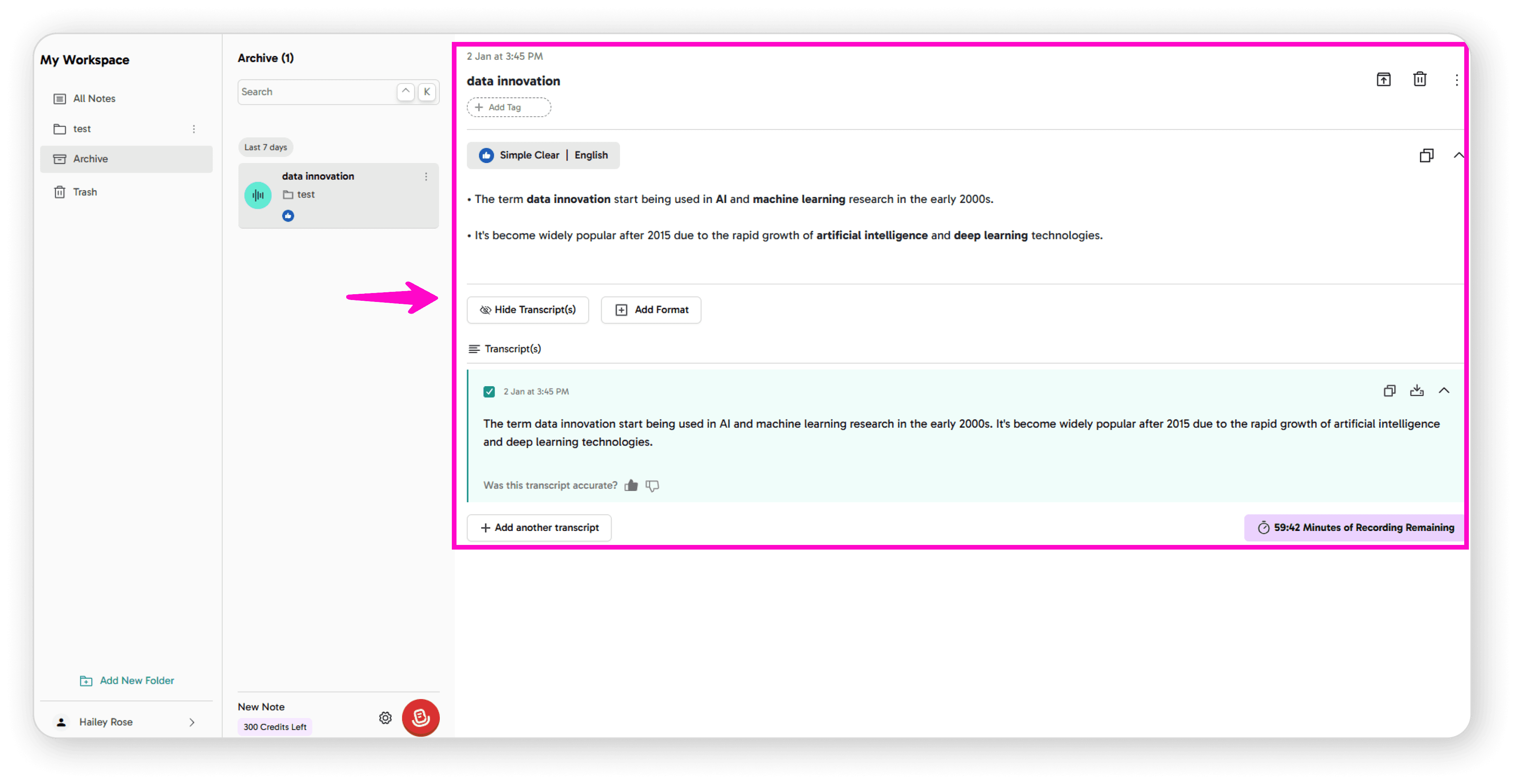
Click the Delete icon
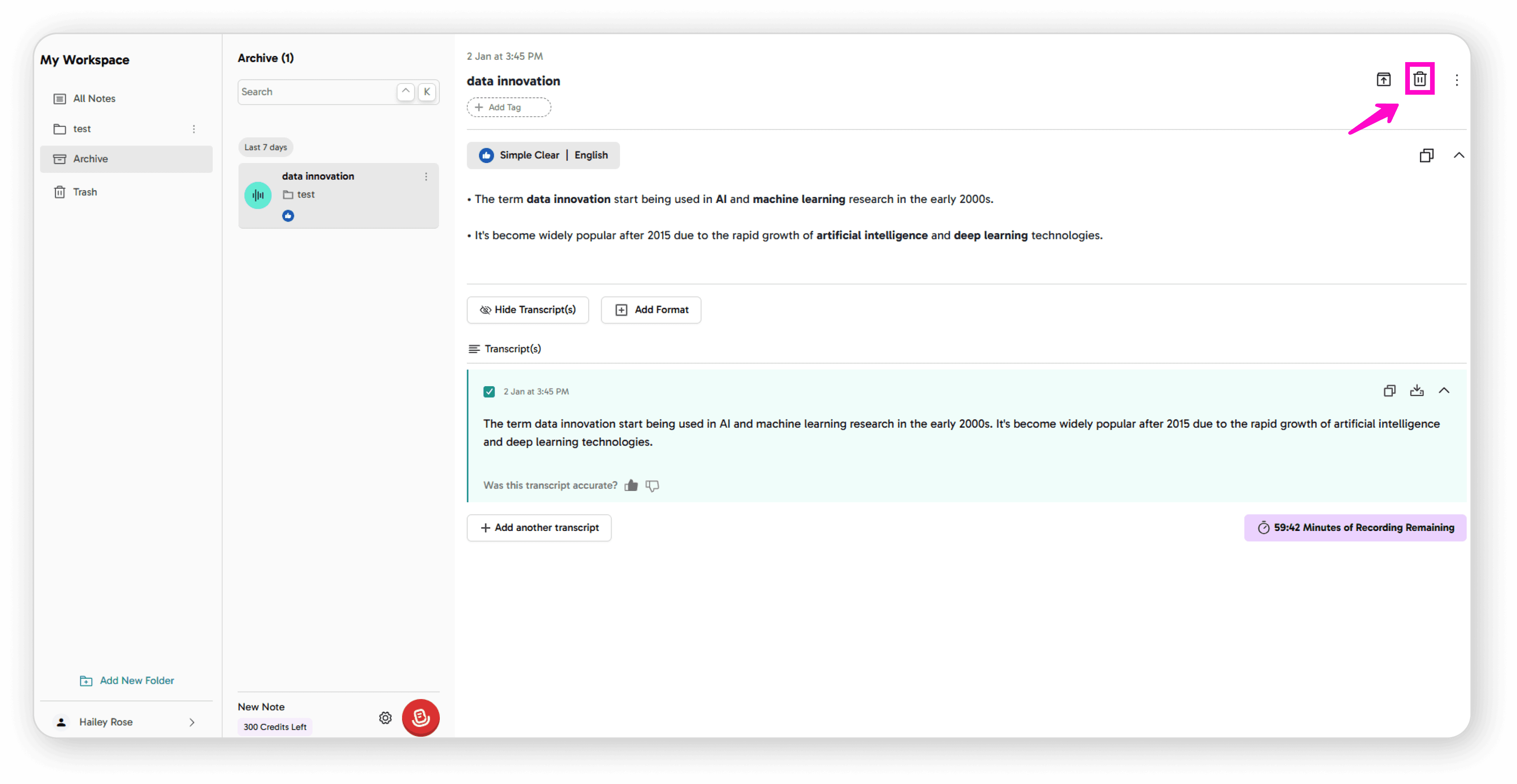
Confirm by clicking Move to Trash
Your note will be moved to the Trash folder.
Restoring a Note from Trash
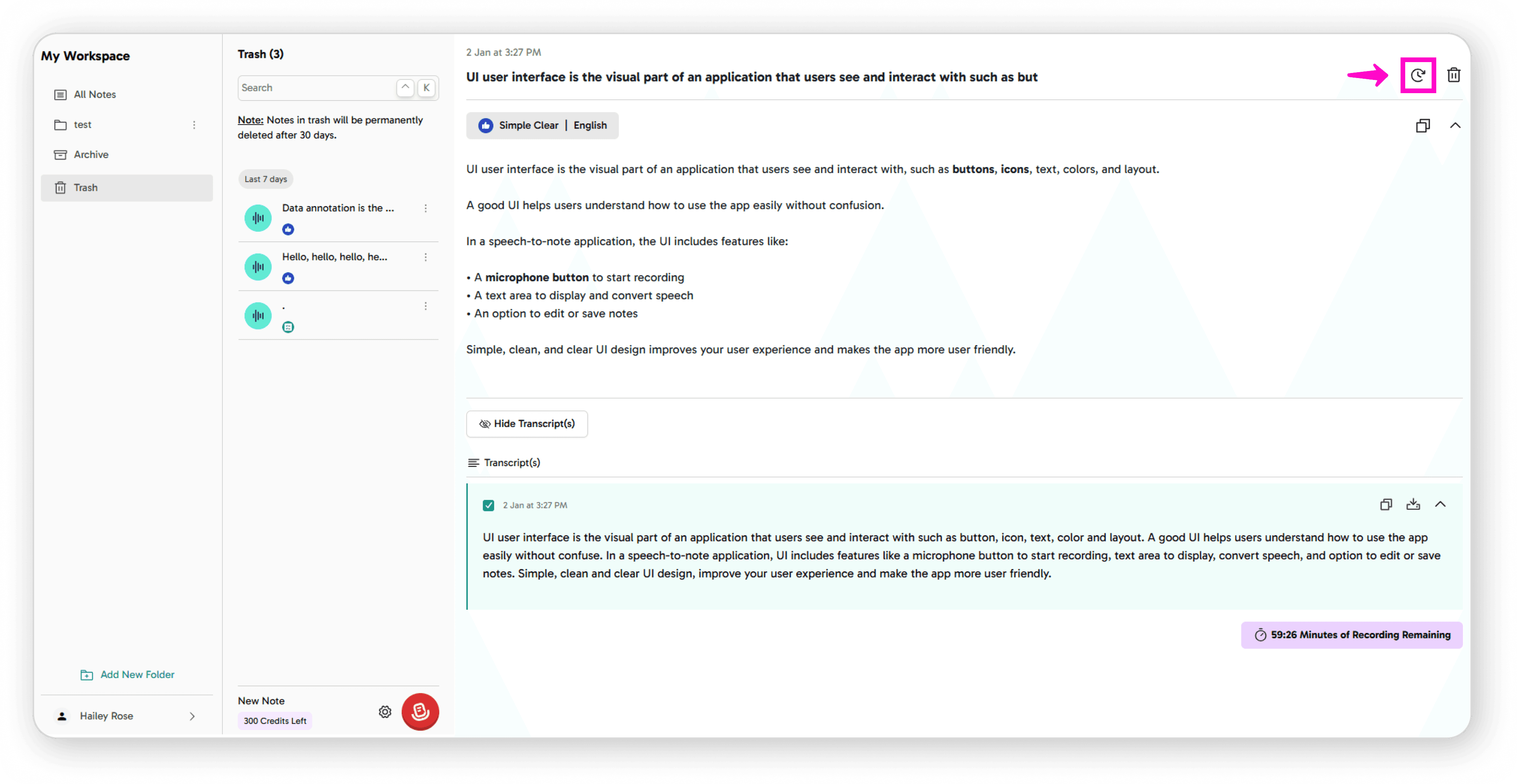
Go to your Trash folder
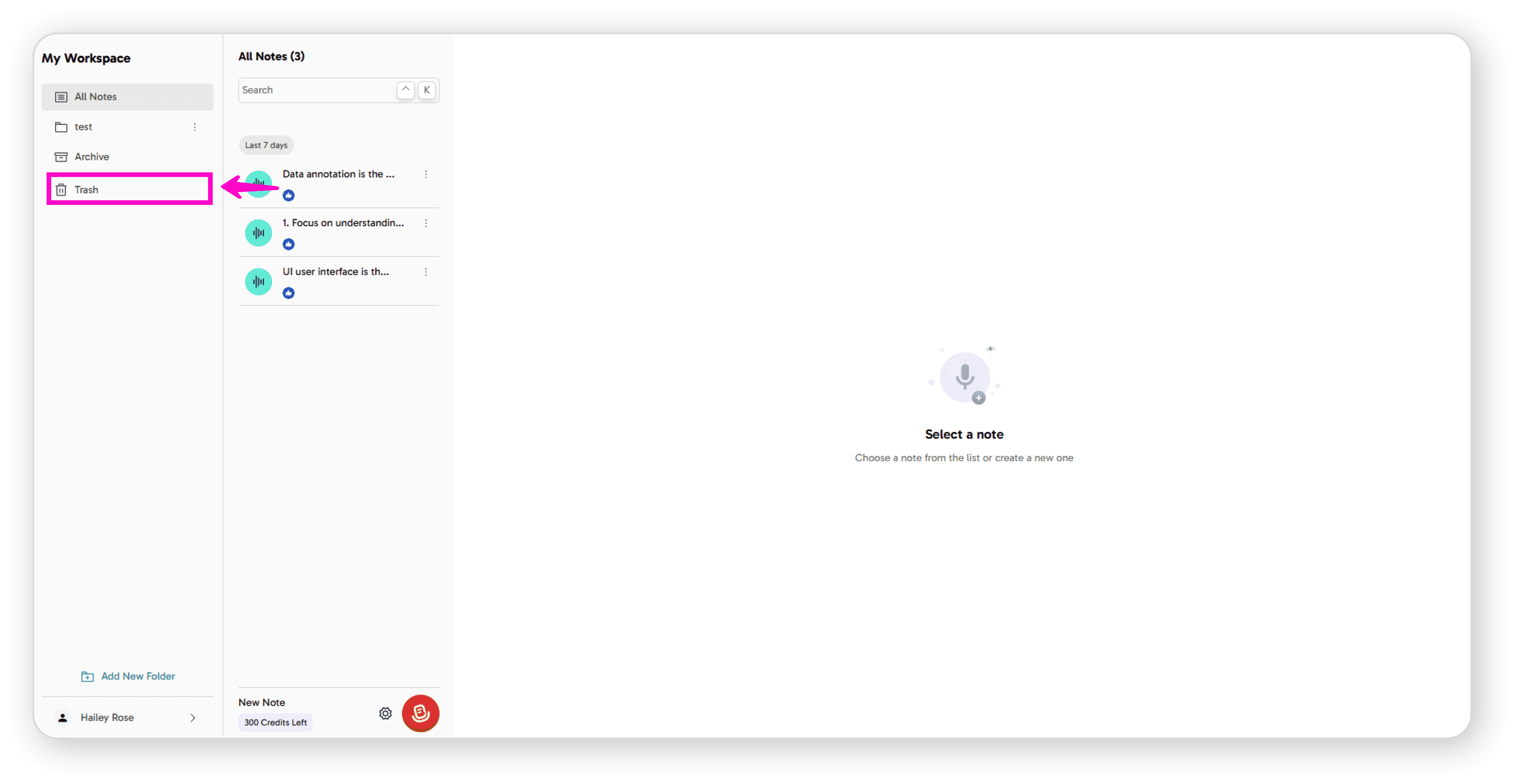
Click on the note you want to restore
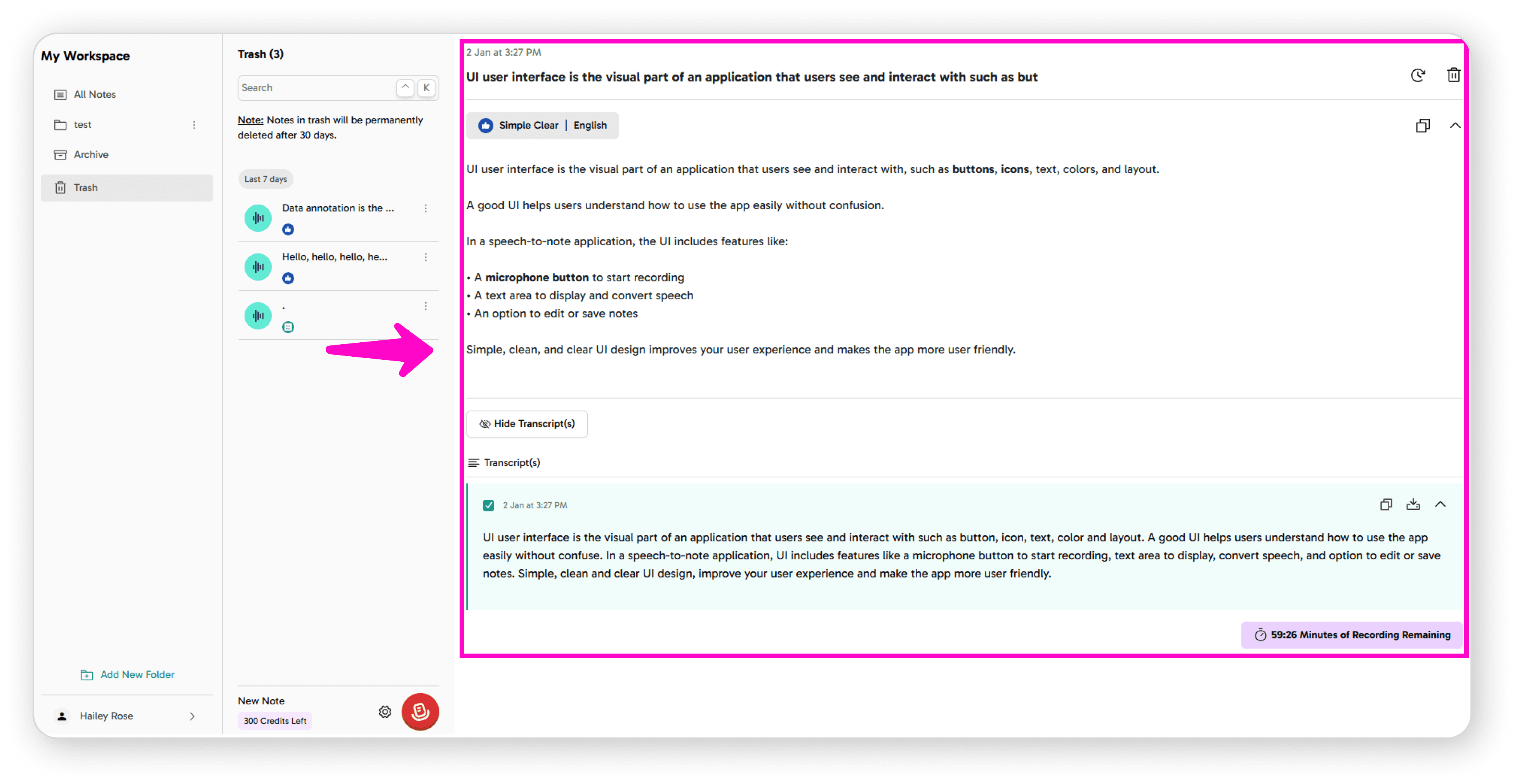
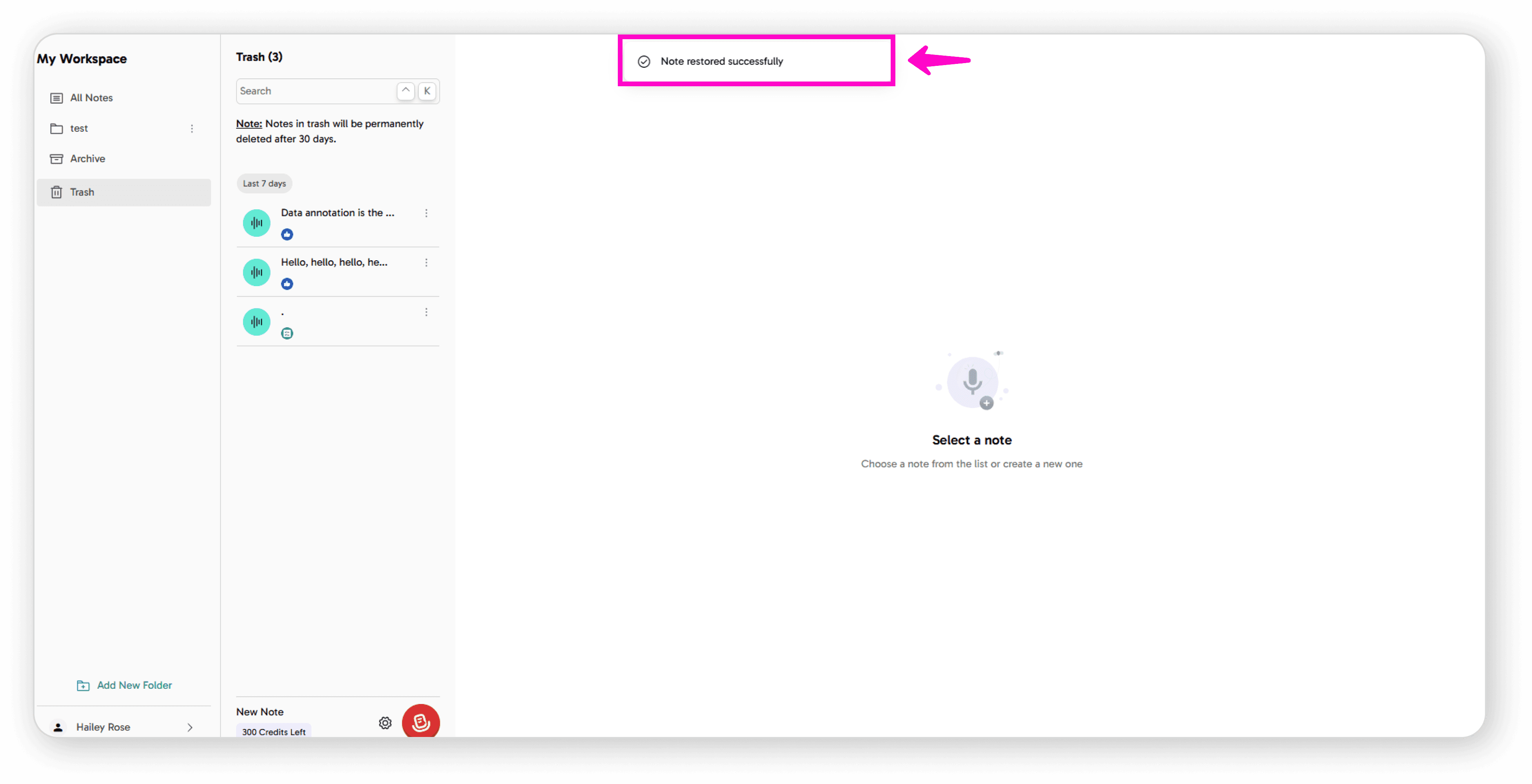
Click the Restore icon
Confirm by clicking Restore
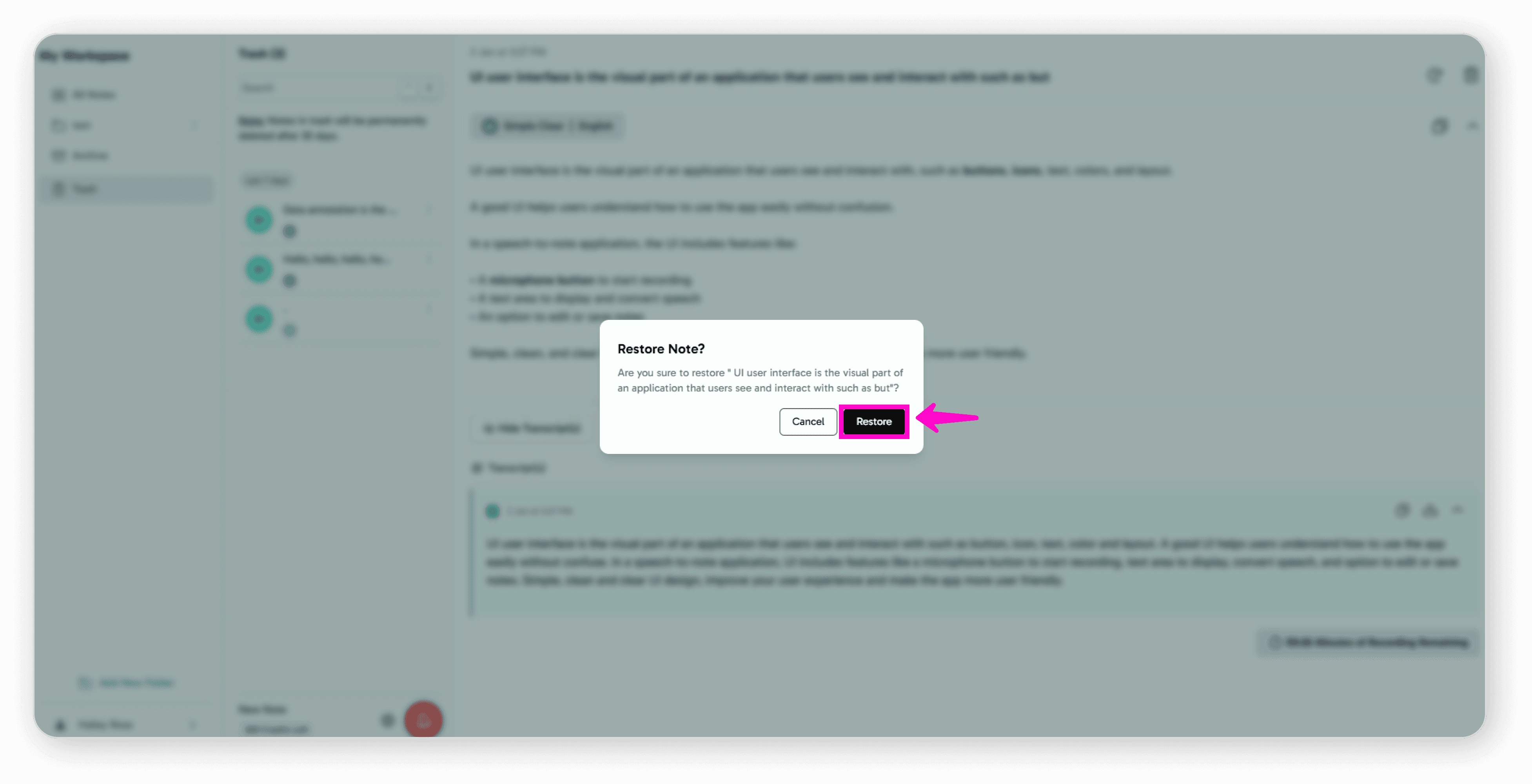
Your note will be restored to its original location.